Get QR Payment Image
Guide to get your Binance Pay QR code image for the QR Payment Image field when setting up Binance Pay on PayerScan.
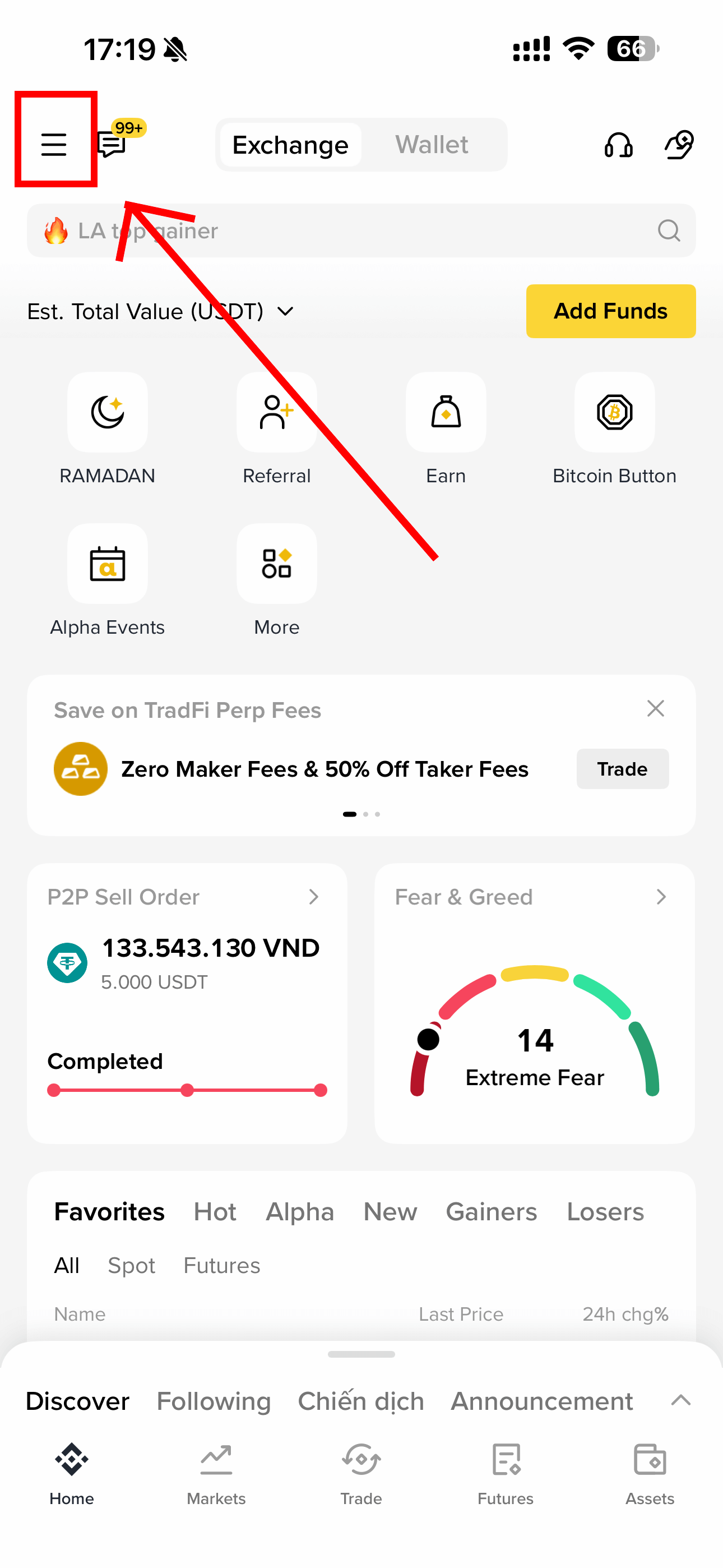
Step 1: Open the Binance app on your phone → tap the hamburger menu (≡) at the top left.
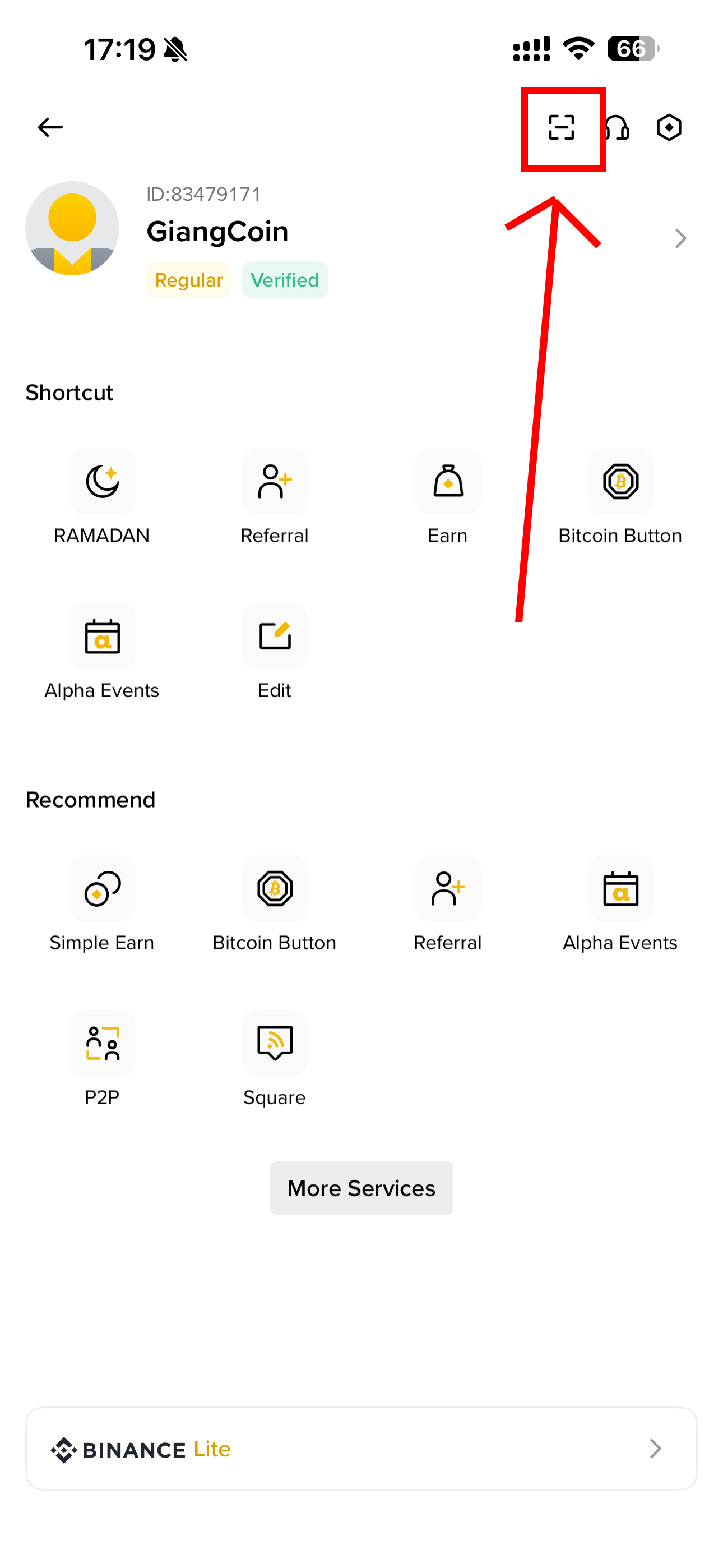
Step 2: In the profile page, tap the QR code icon at the top right.
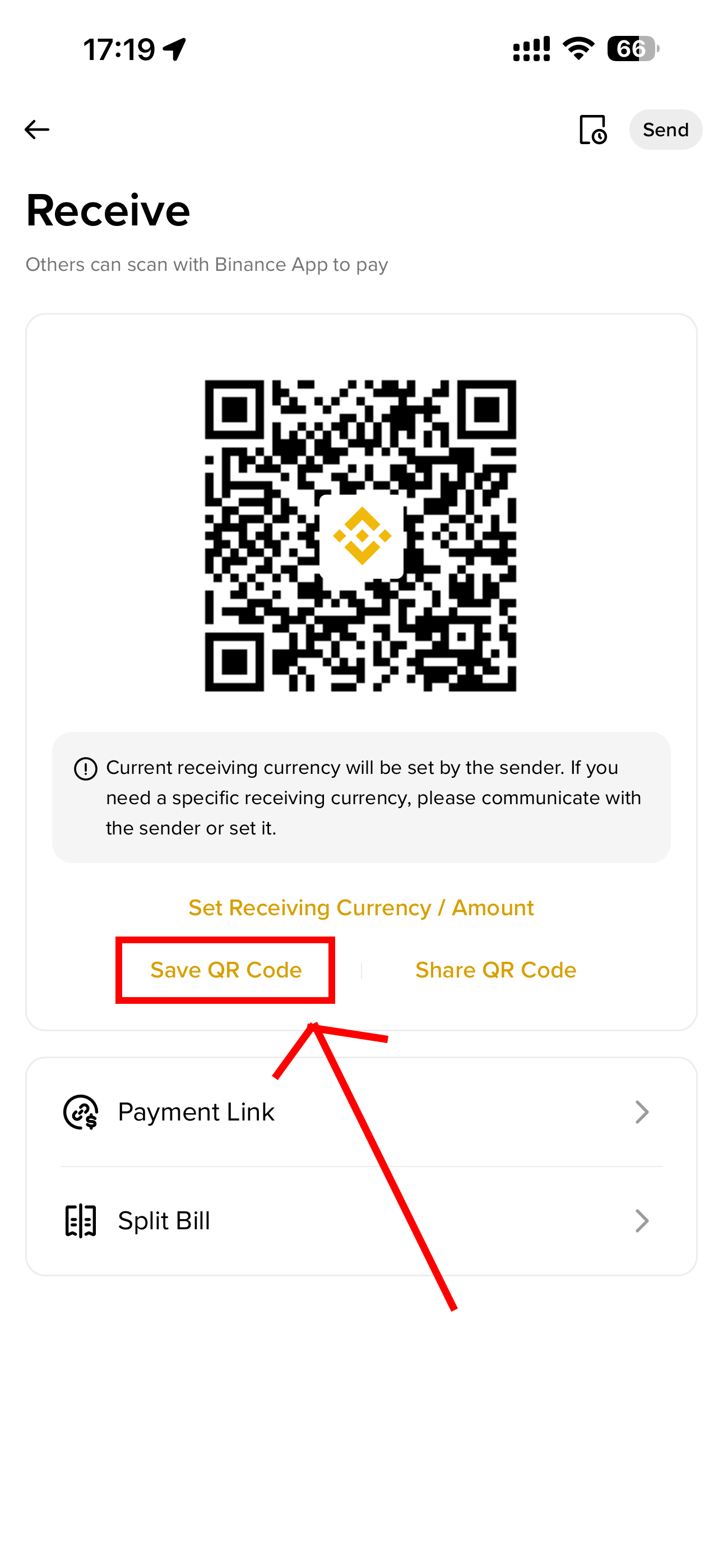
Step 3: On the Receive page, tap Save QR Code to save the image to your device.
Step 4: Crop the image to a 1:1 square ratio (QR code only, no extra space), then upload it to the QR Payment Image field in the Add Binance Pay configuration.

tip
You can quickly crop the image to 1:1 ratio using hitools.pro/ephotor.