Create Store
Guide to create a new Store on PayerScan to start accepting cryptocurrency payments.
Requirements
- A PayerScan account (registered at app.payerscan.com)
Step 1: Access API Crypto
- Log in to the PayerScan Management Panel
- In the sidebar, click API Crypto to open the Store list
- Click the + Create Store button (top right corner)
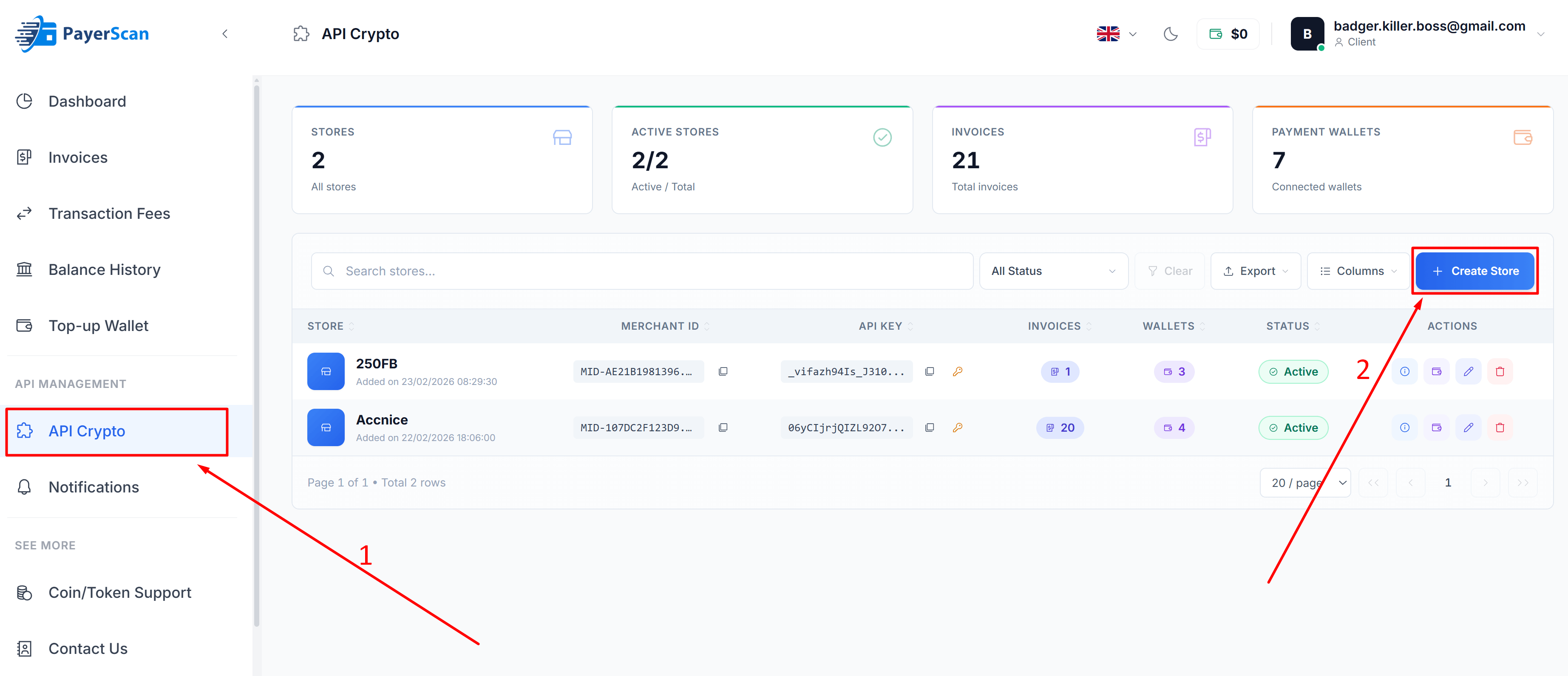
Step 2: Fill in Store Information
The Create New Store dialog will appear:
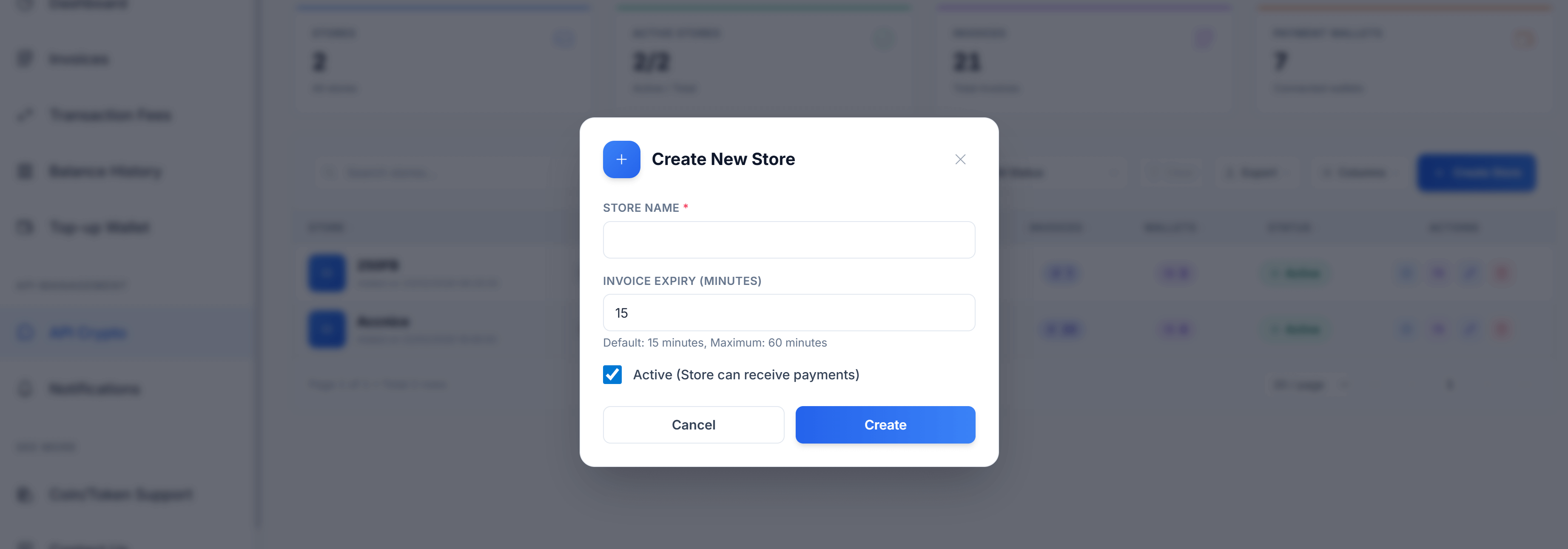
Fill in the required information:
| Field | Description |
|---|---|
| Store Name * | A friendly name for your store (e.g., "My Shop") |
| Invoice Expiry (Minutes) | Time before an unpaid invoice expires. Default: 15 minutes, Maximum: 60 minutes |
| Active | Check to allow the Store to receive payments immediately |
Click Create to create the Store.
Step 3: Update Contact Information (Optional)
After the Store is created, you can add contact information that will be displayed on the payment invoice page, giving customers additional details to get in touch with you.
- In the Store list, click the Contact Information icon (eye icon in the Actions column)
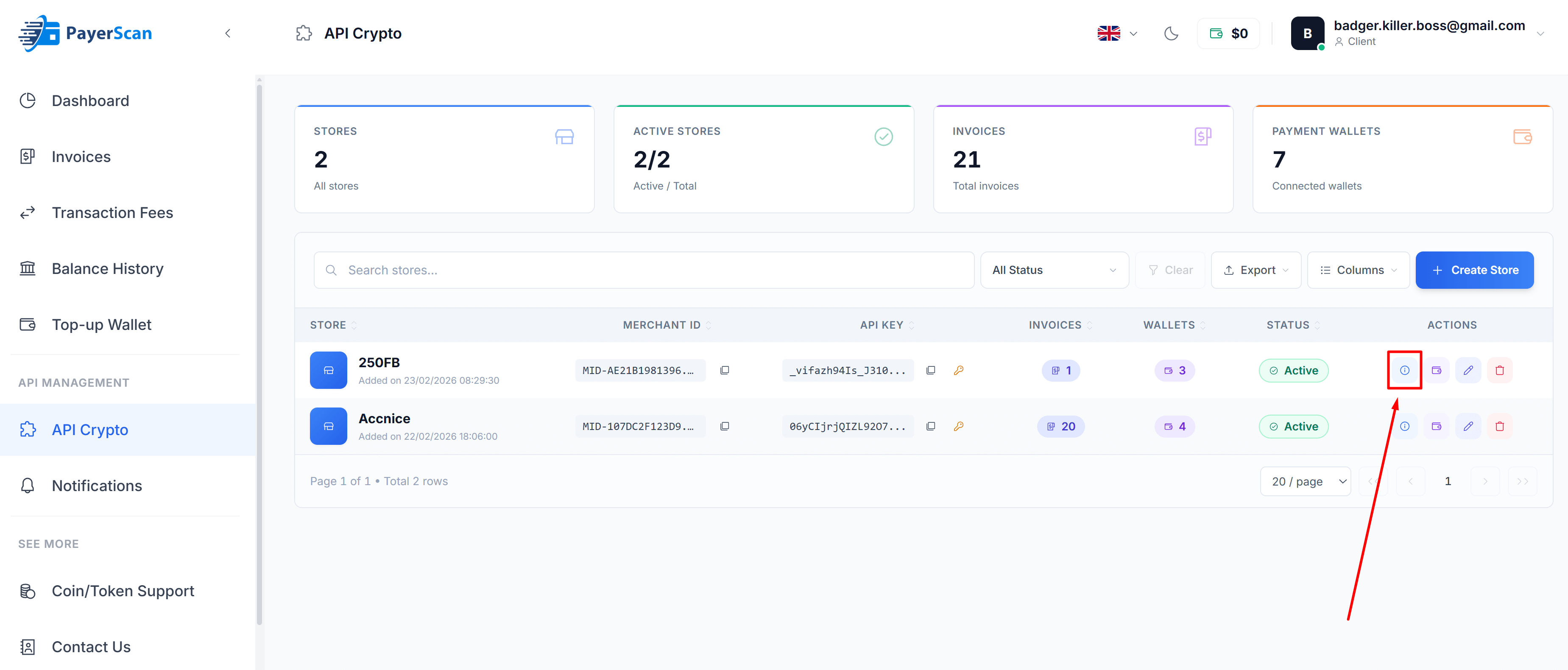
- The Contact Information dialog will appear:
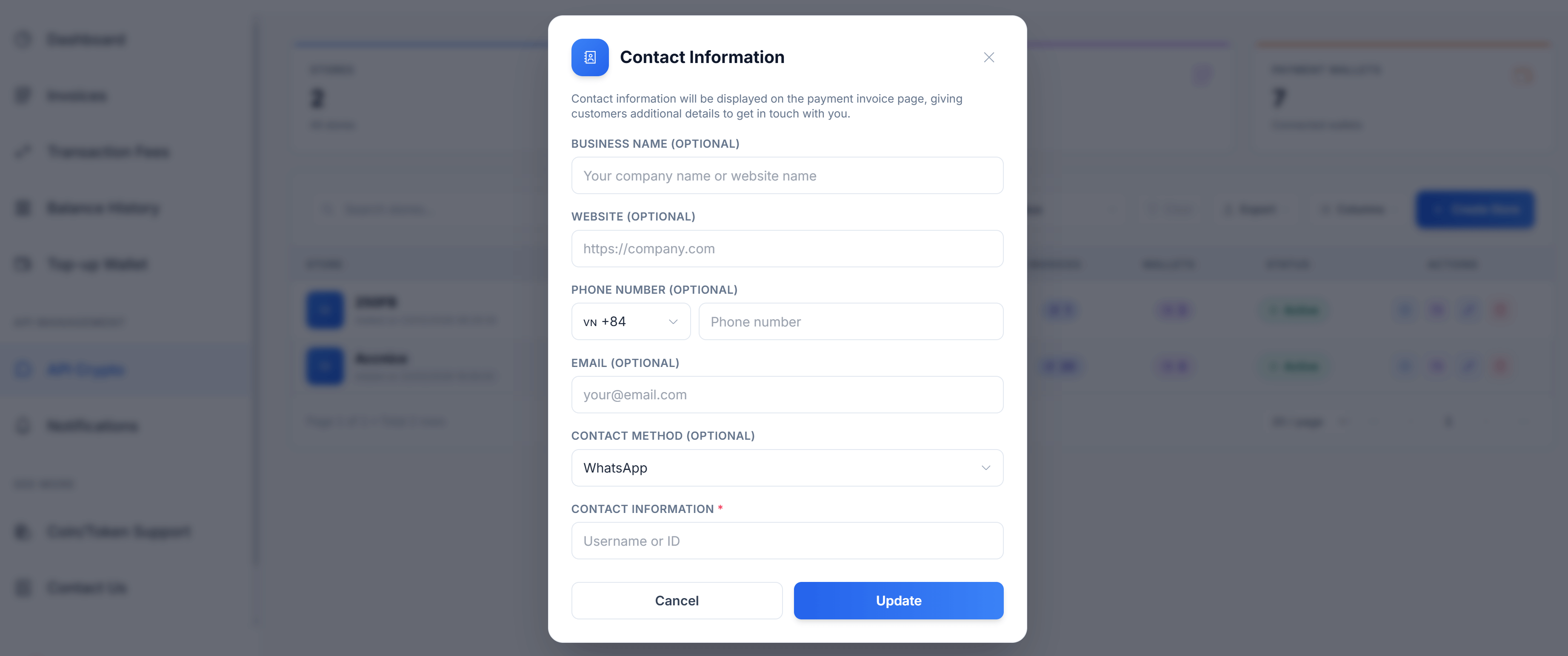
| Field | Description |
|---|---|
| Business Name | Your company name or website name (optional) |
| Website | Your website URL (optional) |
| Phone Number | Your phone number with country code (optional) |
| Your email address (optional) | |
| Contact Method | Preferred contact method — WhatsApp, Telegram, etc. (optional) |
| Contact Information * | Username or ID for the selected contact method |
- Click Update to save the contact information.
Step 4: Get Your API Key
After the Store is created, you will see the following in the Store list:
| Column | Description |
|---|---|
| Merchant ID | Your unique Store identifier (e.g., MID-AE21B1981396...) |
| API Key | Used to authenticate API requests (click the copy icon to copy) |
warning
Keep your API Key secure. Do not expose it in client-side code or public repositories.
Next Steps
After creating your Store, you can:
- Add wallet addresses to receive cryptocurrency payments
- Set up Binance Pay to accept payments via Binance
- Configure Webhooks to receive real-time payment notifications